Most accessibility audits pass on paper and fail in practice. A checklist your team races through in the final sprint before launch is not a QA process; it is a legal liability wearing a checkbox.
TL;DR
- A WCAG 2.1 checklist for developers only works when it is embedded in the sprint cycle, not bolted on at the end.
- Automated scanners catch roughly 30% of accessibility issues; the remaining 70% require manual testing and real assistive technology validation.
- The four WCAG 2.1 AA criteria most often missed by automated tools are focus order, error suggestion, label-in-name, and reflow.
- Screen reader smoke tests and keyboard-only navigation checks belong in your release gate criteria, not your post-launch backlog.
- If your accessibility process produces compliance reports but no behavior change in the dev cycle, it is a documentation exercise, not a quality signal.
What Is a WCAG 2.1 Checklist and Why Most Implementations Miss the Point
A WCAG 2.1 checklist for developers is a structured reference to the Web Content Accessibility Guidelines 2.1 success criteria, organized to help engineering and QA teams verify that a product meets the accessibility standards required for AA conformance. WCAG 2.1 AA is the current baseline for legal compliance in the United States under the Americans with Disabilities Act, in the European Union under the European Accessibility Act, and in dozens of other jurisdictions worldwide.
Where most teams go wrong is treating this as a documentation task rather than a testing discipline. The checklist is a map, but the map is not the territory. You can have every criterion marked “pass” in a spreadsheet and still ship a product that a screen reader user cannot navigate, that a keyboard-only user cannot submit a form through, or that a user with low vision cannot parse because a dynamically loaded component never received a proper ARIA label.
That gap between “our checklist says compliant” and “our product is accessible” is where lawsuits originate. In 2023, web accessibility lawsuits in the United States exceeded 4,600 federal filings, according to UsableNet’s annual accessibility report. The companies named in those suits almost universally had some form of accessibility policy in place. What they lacked was a QA process that validated real behavior under real assistive technology conditions.
Checking Boxes Is Not the Same as Testing for Accessibility
There is a specific failure pattern QA Directors encounter repeatedly: a developer runs axe DevTools or a similar automated scanner, the report comes back with zero critical violations, and the team ships. Two weeks later, a blind user files a complaint because the modal dialog traps keyboard focus and never releases it.
Automated scanners are valuable. They are also limited by design. The WebAIM Million report analyzes the top one million home pages for accessibility errors annually. In its 2024 findings, 95.9% of home pages had detectable WCAG failures even with automated scanning. The four most common failure types were low-contrast text, missing image alt text, missing form input labels, and empty links. These are the easy ones. Scanners find them reliably.
What scanners cannot determine: whether the reading order of content makes logical sense to a screen reader user, whether a custom dropdown built in JavaScript exposes the correct ARIA state to assistive technology, whether a focus indicator that technically exists is visually distinguishable enough for a low-vision user, and whether a dynamically injected error message is announced by a screen reader or silently ignored.
These are judgment calls. They require a human tester operating real assistive technology – specifically NVDA or JAWS on Windows and VoiceOver on macOS and iOS — navigating the product with the same workflows a disabled user would follow. No scanner substitutes for that.
The WCAG 2.1 AA Checklist: Every Criterion QA Teams Must Cover
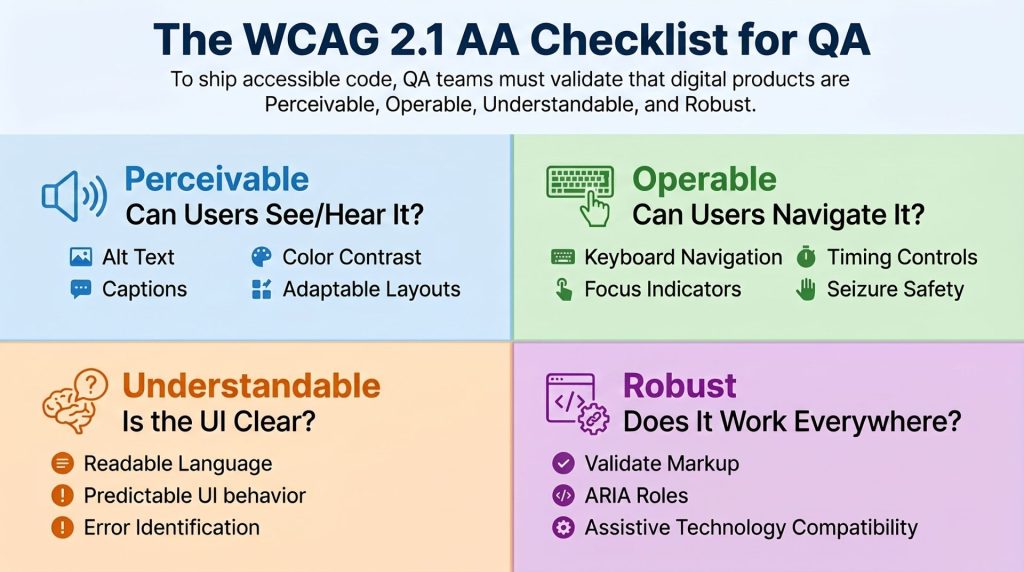
WCAG 2.1 organizes its success criteria under four principles: Perceivable, Operable, Understandable, and Robust. What follows is the QA-focused breakdown of what each principle demands in practice, not just in theory.
Perceivable: Alt Text, Captions, Color Contrast, and Adaptable Layouts
Perceivable criteria govern whether users can access content through their available senses, regardless of disability.
- Alternative Text (1.1.1): Every non-decorative image must have descriptive alt text. Decorative images must use
alt=""so screen readers skip them. The failure mode QA should test for is not missing alt text (scanners find that) but incorrect alt text: file names used as alt text (img_banner_v3_final.png), redundant alt text that repeats adjacent visible text, and alt text on decorative images that reads aloud and disrupts content flow. - Captions and Audio Description (1.2.x): Pre-recorded video must have synchronized captions. Audio-only content requires a text transcript. Live video requires live captions. QA must verify caption accuracy, not just caption presence. Auto-generated captions from YouTube or Vimeo regularly misfire on technical terminology and proper nouns.
- Color Contrast (1.4.3, 1.4.11): Text must meet a 4.5:1 contrast ratio against its background at normal size, and 3:1 at large text (18pt or 14pt bold). Non-text UI components and state indicators also require 3:1 contrast. Test every interactive state: default, hover, focus, active, disabled, and error.
- Adaptable Layouts (1.3.x): Content must retain meaning when the visual presentation is stripped away. Test with a screen reader to verify that the DOM order matches the visual reading order. Test with CSS disabled to confirm structural logic survives.
- Reflow (1.4.10): Content must reflow without horizontal scrolling at 320 CSS pixels width (equivalent to 400% zoom on a 1280-pixel viewport). This criterion trips up teams that treat mobile-responsive layouts as sufficient. Zoom behavior and responsive behavior are not the same test.
Operable: Keyboard Navigation, Focus Indicators, Timing Controls, and Seizure Safety
Operable criteria ensure that users who cannot use a mouse can still operate the interface.
- Keyboard Accessible (2.1.x): Every interactive element must be reachable and operable with a keyboard alone, with no keyboard trap. Test by tabbing through every page in sequence. Any element that receives focus but cannot be activated with Enter or Space is a failure. Any focus that enters a component and cannot exit with Escape or Tab is a keyboard trap.
- Focus Visible (2.4.7): A visible focus indicator must be present on every interactive element. “Visible” under WCAG 2.1 AA is a low bar (any visible indicator qualifies). WCAG 2.2 raised this with Success Criterion 2.4.11, requiring minimum focus indicator area and contrast. QA teams serving enterprise or government clients should test against the 2.2 standard even when 2.1 is the contractual requirement.
- Timing Adjustable (2.2.1): Users must be able to turn off, adjust, or extend any time limit. Session timeouts must warn users before expiration and give them the ability to extend. Test the actual timer behavior, not just the presence of a warning dialog.
- Seizure Safety (2.3.1): Content must not flash more than three times per second. This criterion is non-negotiable for any content with animation, video, or rapid visual transitions.
- Bypass Blocks (2.4.1): A skip navigation link must allow keyboard users to jump past repeated header and navigation content directly to the main content area. QA must verify the skip link is visible on focus and that it actually moves keyboard focus to the correct destination, not just the visual viewport.
Understandable: Readable Language, Predictable UI, and Error Identification
Understandable criteria address whether users can comprehend the content and predict how the interface will behave.
- Language of Page (3.1.1): The HTML
langattribute must be set correctly on the element. Screen readers use this to select the correct language engine and pronunciation rules. A page served in English withlang="es"will be read with Spanish phonetics. QA should check this in the source on every page template. - Consistent Navigation (3.2.3): Navigation mechanisms that appear on multiple pages must appear in the same relative order each time. Test across page types: home, interior, modal, error state.
- Error Identification and Suggestion (3.3.1, 3.3.3): Form errors must be identified in text (not color alone) and must describe what went wrong. Where the format is known, the error message must suggest a correction. “Invalid input” is not a compliant error message. “Please enter your phone number in the format (555) 555-5555” is.
- Labels and Instructions (3.3.2): All form inputs must have visible labels. Placeholder text does not qualify as a label; it disappears when the user starts typing, which fails users with cognitive disabilities.
Robust: Valid Markup, ARIA Roles, and Assistive Technology Compatibility
Robust criteria ensure that content remains accessible as assistive technologies evolve.
- Valid HTML (4.1.1): Markup must have complete start and end tags, elements nested correctly, no duplicate IDs, and attributes properly formed. Duplicate IDs are the most common failure here. They cause screen readers to read the wrong element or skip elements entirely.
- Name, Role, Value (4.1.2): Every UI component must expose its name, role, and current state to assistive technology. A custom toggle built in elements with no ARIA roles is invisible to screen readers. QA must test custom components with a screen reader, not just validate the HTML.
- Status Messages (4.1.3): Status messages that appear without focus (success banners, loading indicators, cart updates) must be announced to screen reader users via
aria-liveregions. Test by triggering the action and listening with a screen reader to confirm the announcement fires.
Four WCAG 2.1 Criteria That Automated Scanners Routinely Miss
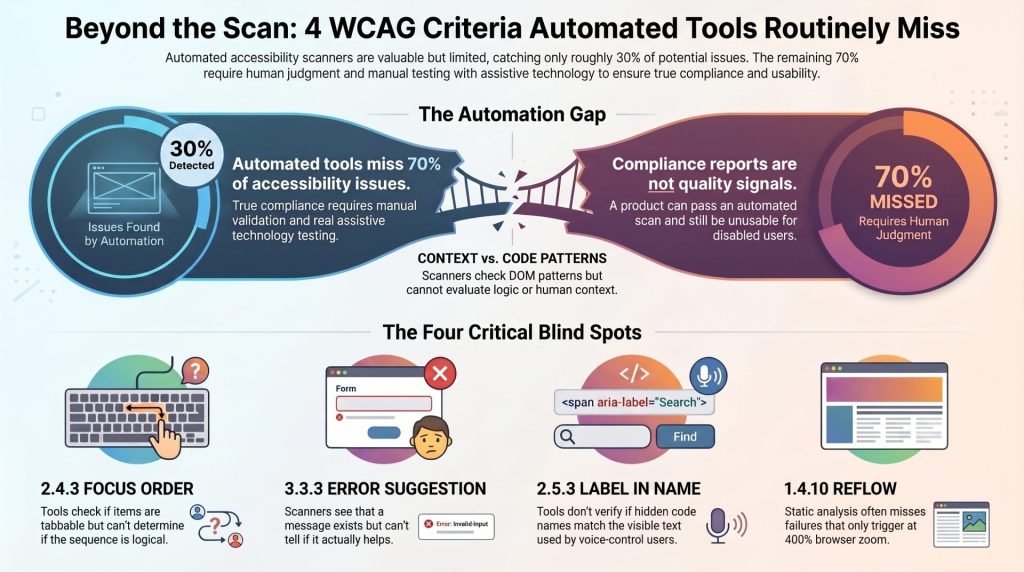
Scanners are deterministic. They check the DOM for patterns they can recognize. Accessibility failures that require contextual judgment fall outside their scope. These four criteria are the most consistent blind spots:
- Focus Order (2.4.3): A scanner can confirm that interactive elements are in the tab order. It cannot determine whether that order makes logical sense. A modal that opens and traps focus but presents buttons in an order that contradicts the visual layout will pass a scanner and confuse a screen reader user.
- Error Suggestion (3.3.3): Scanners can detect that an error message exists. They cannot evaluate whether it tells the user what to do to fix the problem. This requires a human tester to trigger the error state and read the message against the criterion’s requirement.
- Label in Name (2.5.3): Interactive elements whose visible label and accessible name differ will confuse voice control users who activate controls by speaking their visible label. A button that visually reads “Submit” but has an accessible name of “btn_submit_form_v2” will not respond to the voice command “click Submit.” Scanners check for accessible name presence, not for match with visible text.
- Reflow (1.4.10): Most scanners do not test at a 320-pixel viewport width under zoom conditions. Reflow failures appear at runtime in a browser at 400% zoom, not in a static DOM analysis. This requires a manual browser test.
How to Integrate WCAG Validation Into Your CI/CD Pipeline Without Slowing the Sprint
Accessibility testing does not have to be a separate phase that arrives at the end of development and holds up the release. The goal is to distribute testing across the sprint so that the surface area of issues narrows as the release approaches, not expands.
Automated Linting and Axe-Core Integration at the PR Level
The cheapest place to catch an accessibility defect is before the code merges. Configure axe-core to run as part of your existing CI/CD pipeline on every pull request. Axe-core is open source, integrates with Jest, Cypress, and Playwright, and produces structured violation reports that can be treated as test failures.
Set the pipeline to fail on any critical or serious violation. Moderate violations should surface as warnings in the PR review, not silent failures. This eliminates the entire class of detectable issues before they accumulate in the codebase.
For teams building component libraries or design systems, accessibility linting at the component level (using tools like eslint-plugin-jsx-a11y for React projects) catches markup-level issues even earlier, before a component reaches integration testing.
Manual Testing Checkpoints Before Every Release Candidate
Once automated checks are running at the PR level, manual testing at the release candidate stage becomes focused rather than exhaustive. The manual checklist for each release candidate should cover:
- Keyboard-only navigation through all critical user flows (account creation, checkout, form submission, modal interactions)
- Color contrast verification for any new or modified UI components across all interactive states
- Screen reader walkthrough of any new page templates or dynamic content regions
- Reflow testing at 400% zoom in Chrome and Firefox
- Error state validation: trigger every form error and confirm message content meets 3.3.3
This is not a full regression of the entire product on every release. It is a targeted verification of what changed in this cycle, scoped by the diff between the last release candidate and the current one.
Screen Reader Smoke Tests as a Gate, Not an Afterthought
A screen reader smoke test takes fifteen minutes. It covers the five most critical flows in the product: navigation, primary action (purchase, signup, or submission), form completion with error recovery, modal interaction, and dynamic content loading.
The test is pass/fail. If a screen reader user cannot complete any of those five flows without hitting a blocking issue, the release does not ship. This belongs in your Definition of Done alongside unit test coverage and security scanning — not as a QA preference, but as a legal and ethical requirement.
Outpost QA’s Accessibility Testing practice integrates screen reader validation directly into release gate criteria, so the smoke test is a standard checkpoint, not a special engagement.
Three Signs Your Accessibility Testing Is a Compliance Exercise, Not a Quality Signal
Compliance-oriented accessibility testing produces reports. Quality-oriented accessibility testing produces accessible products. The distinction is visible in how teams behave, not what documentation they generate.
Sign one: Your accessibility defects only surface during audits, not during regular sprint testing. If the QA team is not filing accessibility bugs in the same tracker as functional bugs during every sprint, accessibility is not being tested during development. It is being reviewed afterward.
Sign two: No one on the team has tested the product with a screen reader in the last quarter. This is more common than any QA Director wants to admit. If keyboard and screen reader testing requires scheduling a specialist or contracting an external firm, it is too expensive to do regularly. Regular testing requires the capability to exist inside the team.
Sign three: Accessibility criteria appear in a separate checklist document that is not connected to your test case management system. When accessibility criteria live in a standalone spreadsheet rather than alongside functional test cases in Jira, Xray, or your test management tool of choice, they get treated as optional. Test cases that live in the same system as other acceptance criteria get executed with the same regularity.
Each of these signs points to the same root cause: accessibility validation was added to the process without being integrated into it.
When You Need Dedicated Accessibility QA, Not Just a Checklist
A checklist answers “did we check this criterion?” Dedicated accessibility QA answers “does this product work for users with disabilities?” These are different questions, and the gap between them grows with product complexity.
For a static marketing site with minimal interaction, a thorough checklist and automated scanning will cover the meaningful risk surface. For a SaaS application with custom components, complex state management, dynamic content regions, and multi-step workflows, the checklist is a starting point. The real validation requires testers who understand how screen readers interact with JavaScript frameworks, how ARIA live regions behave under different browser and assistive technology combinations, and how to distinguish a WCAG technical failure from a usability failure that falls outside the standard but still blocks disabled users.
Consider what happened in the Owlet case: hardware-software synchronization issues created systemic risk across platforms that automated tooling could not surface. The same principle applies to accessibility. When Outpost QA rebuilt the QA architecture for a health-tech client, the process exposed critical issues that scanners had not flagged, because those issues only appeared under real usage conditions with real assistive technology.
When your product falls into any of these categories, a checklist is not enough:
- Custom interactive components that use non-native HTML elements (custom selects, date pickers, data tables, drag-and-drop interfaces)
- Single-page applications where route changes must be announced to screen readers
- Products subject to Section 508, ADA Title III, or CVAA compliance requirements
- Enterprise SaaS sold to government or healthcare clients with contractual accessibility obligations
- Products with a significant portion of users over 60 (the demographic most likely to rely on accessibility features)
If your product fits any of those categories, schedule an accessibility audit before your next major release. Not after.
Outpost QA’s team can assess your current WCAG 2.1 AA coverage, identify which criteria carry the highest legal and user-experience risk for your specific product type, and build a testing process that validates accessibility on the same cadence as your release cycle. Book a coverage gap assessment before your next release ships with undetected failures.
Frequently Asked Questions
What is the difference between WCAG 2.1 AA and WCAG 2.2 AA?
WCAG 2.2 adds nine new success criteria to the 2.1 standard, with the most significant additions targeting keyboard and focus behavior (2.4.11 Focus Appearance, 2.4.12 Focus Not Obscured), mobile interaction (2.5.7 Dragging Movements, 2.5.8 Target Size Minimum), and authentication accessibility (3.3.7 Redundant Entry, 3.3.8 Accessible Authentication). WCAG 2.1 AA remains the legal baseline in most jurisdictions as of mid-2025, but enterprise and government contracts increasingly specify 2.2 AA. QA teams should understand which version applies to their contractual obligations and test accordingly.
How many WCAG 2.1 AA success criteria are there?
WCAG 2.1 AA includes 50 success criteria across the four principles: Perceivable, Operable, Understandable, and Robust. This is the combined count of criteria inherited from WCAG 2.0 AA plus the 17 new criteria added in WCAG 2.1. Level A criteria (the minimum threshold) number 30; the additional 20 Level AA criteria define the conformance level most regulations and contracts require.
Can an automated scanner alone certify WCAG 2.1 conformance?
No. Automated tools reliably detect a subset of accessibility failures, typically estimated at 30 to 40 percent of all possible issues. The remainder require human judgment: whether focus order is logical, whether error messages are actionable, whether ARIA implementations produce the correct behavior in real assistive technology. No audit based solely on automated scanning is sufficient for a conformance claim.
What assistive technologies should QA test with for WCAG 2.1 AA?
At minimum, test with NVDA and Firefox on Windows, JAWS and Chrome on Windows, and VoiceOver with Safari on macOS and iOS. These pairings cover the most common screen reader and browser combinations used by disabled users, based on the WebAIM Screen Reader User Survey. Android users typically rely on TalkBack with Chrome, which should be added for any product with a mobile web component.
When does accessibility testing need to happen in the development cycle?
Accessibility testing belongs at every phase. Markup and ARIA linting should run at the pull request level. Component-level keyboard and focus behavior should be verified during development before a feature branch merges. Manual keyboard and screen reader testing should occur at the release candidate stage for all new or modified flows. A full regression against the WCAG 2.1 AA checklist for developers should run before any major release. Treating accessibility as a final-stage audit guarantees that the cost and time of remediation will be higher than if issues had been caught earlier.